👉 Try MindtrixAI’s Free LLMs.txt Generator, AI Humanizer Tool & AI Paraphrasing Tool Now →
If you only read one paragraph, read this one.
The best AI coding tools in 2026 split into three rough tiers. For daily inline autocomplete on a tight budget, GitHub Copilot at $10 a month still wins on price and sheer IDE coverage. For an AI-native editor that can rewrite an entire feature across a dozen files, Cursor and Windsurf (both $20 a month for Pro) lead the pack.
For deep, terminal-based reasoning on large or genuinely messy codebases, Claude Code and OpenAI Codex are the strongest agents I’ve used this year. And if you’re not ready to spend a rupee or a dollar on any of this, GitHub Copilot Free and JetBrains AI Assistant’s free tier will get you further than you’d expect.
There is no single “best” tool here. There’s a best tool for your stack, your budget, and how much control you’re comfortable handing over. That’s what the rest of this guide is for.
Best AI Coding Tools: Key Takeaways
- I tested 14 tools spanning free tiers to $200/month agent plans, so you can match a tool to your actual budget instead of chasing whatever’s trending on X this week.
- GitHub Copilot is still the cheapest serious option at $10/month, with the widest IDE support (VS Code, JetBrains, Neovim, Visual Studio, Xcode).
- Cursor and Windsurf now cost the same, $20/month for Pro, so the real decision between them comes down to how each one “feels” to use, not price.
- Claude Code and OpenAI Codex are the two I reach for when a codebase is genuinely large, old, or confusing. Both can burn through usage limits fast if you’re not watching how you use them.
- Free tiers are actually usable in 2026, not just seven-day trials in disguise. Copilot Free, JetBrains AI’s free credits, and Windsurf’s free quota can carry a light coder for weeks.
- Pricing got more complicated this year, not simpler. Copilot, Cursor, and Windsurf all switched to credit or token-based billing on top of their flat subscription fee, so your real monthly cost depends on which AI model you pick, not just which plan.
Best AI Coding Tools at a Glance [Comparison Table]
| Tool | Best For | Type | Starting Price | Free Tier? |
|---|---|---|---|---|
| GitHub Copilot | Budget-friendly daily coding across any IDE | Assistant + Agent | $10/month (Pro) | Yes |
| Cursor | AI-native editor, multi-file agentic edits | AI-first Editor | $20/month (Pro) | Yes (Hobby) |
| Claude Code | Reasoning across large, messy, or legacy codebases | Coding Agent | $20/month (Pro) | No, Pro required |
| Windsurf | Agent workflows with persistent project memory | AI-first Editor | $20/month (Pro) | Yes |
| OpenAI Codex | Teams already living in the ChatGPT/OpenAI stack | Coding Agent | Included in ChatGPT Plus ($20/mo) | Limited |
| Amazon Q Developer | AWS-native development and cloud workflows | Assistant + Agent | Free / $19/user/mo (Pro) | Yes |
| Tabnine | Privacy-first teams needing on-prem deployment | Assistant | Free / $39/user/mo (annual) | Yes |
| JetBrains AI Assistant | Developers already living inside IntelliJ, PyCharm, WebStorm | IDE Assistant | Free / $10 to $60 per 30 days | Yes |
| Replit AI | Complete beginners and browser-only prototyping | Browser IDE + Agent | Free / $20 to $25/mo (Core) | Yes |
| v0 by Vercel | Generating production-ready UI from a prompt | UI Generator | Free / $20/mo (Premium) | Yes |
| Gemini Code Assist | Teams inside Google Cloud or Android workflows | Assistant | Free / $19/user/mo (Standard) | Yes |
| Qodo | AI-driven code review and PR quality checks | Review Agent | Free / $30 to $38/user/mo (Teams) | Yes |
| Sourcegraph Cody | Enterprise teams with massive, complex repositories | Repo-aware Assistant | Enterprise-only, from $16,000/year | No |
| ChatGPT (web/app) | Quick architecture questions and rubber-duck debugging | General Assistant | Free / Plus $20/mo / Pro $100/mo | Yes |
Prices reflect published vendor pricing as of late June 2026 and can change. Copilot, Cursor, and Windsurf all now use credit or token-based billing on top of the base subscription, so your real monthly cost can end up higher than the sticker price if you lean on premium models heavily.
How I Actually Tested Best AI Tools for Coding [My Methodology]
I’ll be upfront about this before you read another word: “best AI coding tools” lists are everywhere right now, and a lot of them are the same feature table copied from tool to tool with the dates changed. I wanted this one to actually be useful, so here’s exactly what I did.
I ran each tool through four checks:
- Real completion and agent quality. I gave each tool the same kind of tasks I’d genuinely hand a junior developer: a multi-file refactor, a bug hunt in code I didn’t write, a fresh feature built from a plain-English prompt, and a quick documentation pass. I paid close attention to how each tool handled context across files, not just how clean a single autocomplete looked.
- Setup friction. I timed how long it took to go from installing the tool to getting a usable suggestion inside VS Code, a JetBrains IDE, or the terminal. Some of these took under two minutes. One took closer to twenty.
- Current, verified pricing. I checked every price against each vendor’s official pricing page as of late June 2026, not a pricing table from a year-old roundup. This mattered more than usual this year because Copilot, Cursor, and Windsurf all restructured their billing in 2026, and getting this wrong is exactly the kind of “false information” that makes a review useless.
- What other developers are actually saying. I cross-checked my own impressions against community discussion on Reddit threads like r/ChatGPTCoding and r/cursor, GitHub issue threads, and comparison write-ups from other practitioners, including competitor roundups from Zapier, Augment Code, and Axify, so I wasn’t just relying on my own bubble.
What I’m evaluating each tool on, specifically:
- Suggestion accuracy and how often I had to rewrite what it gave me
- How well it handles multi-file or whole-repo context, not just the open tab
- How it fits into a workflow you already have, versus how much it asks you to change
- Whether the pricing is honest and predictable, or full of hidden credit traps
What Is an AI Coding Tool, Really?
An AI coding tool is anything that helps you write, edit, explain, or ship code using plain-English input. That covers a huge range, from simple autocomplete that finishes your current line, all the way up to fully autonomous agents that plan a task, edit dozens of files, run terminal commands, and open a pull request without you touching the keyboard in between.
The category has split into two rough types, and knowing which one you’re looking at matters more than the brand name on the tool.
AI Pair Programming Tool vs. AI Coding Agent: What’s the Difference?
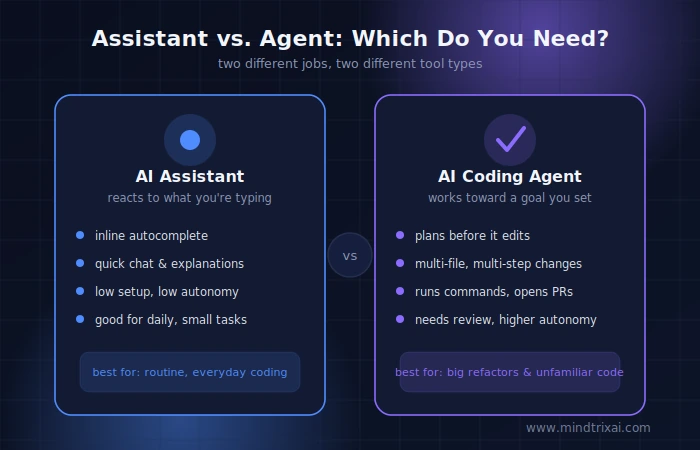
An AI pair programming tool (or AI assistant) reacts to what you’re already doing. It suggests completions, answers questions, explains a confusing block of code, and helps with a quick refactor, all inside your editor, in real time.
An AI coding agent works differently. You hand it a goal instead of a keystroke. It inspects your repository on its own, proposes a plan, edits multiple files, runs commands, and hands the finished work back to you for review.
The 14 Best AI Coding Tools, Reviewed [Tested Hands-On]
1. GitHub Copilot, Best AI Coding Tool for Budget-Conscious Developers
Copilot is still the tool most developers reach for first, and honestly, after using it again for this review, I get why. It works inside whatever editor you already have open, VS Code, any JetBrains IDE, Neovim, Visual Studio, or Xcode, so there’s no new workflow to learn on day one.
What changed in 2026: GitHub moved Copilot to usage-based billing on June 1, 2026. Instead of a fixed monthly request count, every plan now includes a pool of “AI Credits” based on token usage. Basic code completions stay free and unlimited on paid plans. It’s chat, agent mode, and code review that pull from the credit pool.
I actually like this shift in theory, but it means heavy agent users can burn through their allowance faster than expected if they default to an expensive frontier model instead of a cheaper one.
Key features:
- Inline completions and multi-line suggestions across major IDEs
- Copilot Chat for debugging, explanations, and refactors
- Agent Mode for multi-step, multi-file tasks
- A cloud agent that can open and iterate on pull requests directly from GitHub issues
- Access to a broad model catalog, including Claude, GPT, and Gemini models, on higher tiers
Pricing:
- Free: 2,000 completions/month, limited chat and agent access
- Pro: $10/month, unlimited completions plus $15 in monthly AI Credits
- Pro+: $39/month, $70 in monthly AI Credits, access to premium models
- Max: $100/month, $200 in monthly AI Credits
- Business: $19/user/month
- Enterprise: $39/user/month
Pros:
- Cheapest serious paid tier on this whole list
- Works in almost every editor developers actually use, including JetBrains IDEs, which Cursor still doesn’t support at all
- Deep native integration with GitHub issues, pull requests, and Actions
Cons:
- Agent mode isn’t as mature as Cursor’s or Claude Code’s for big, coordinated refactors
- The new credit system adds a layer of billing complexity that caught even me off guard the first time I checked my usage dashboard
- The Enterprise tier effectively got more expensive once GitHub Enterprise Cloud became a prerequisite
What the community says: developers who split their tools by task tend to keep Copilot for fast, reliable daily-driver completions and reach for Cursor or Claude Code only when a job needs deep multi-file reasoning. The recurring praise is that Copilot’s completions are “conservative but consistently correct.” The recurring complaint is that agent mode still lags behind AI-native editors on large, coordinated refactors.
Best for: developers who want a low-cost, low-friction assistant that works wherever they already code, especially JetBrains users.
2. Cursor, Best AI-Native Editor for Multi-File Agentic Work
Cursor is a VS Code fork with AI built into the center of the editing experience rather than bolted on as an extension. Its Agent mode, now called the Agents Window after the Cursor 3 relaunch in April 2026, can read your entire codebase and make coordinated changes across many files in a single pass.
I also tried running two agent tasks in parallel through the new Agents Window, and it genuinely felt like managing two junior devs instead of babysitting one chat window.
Key features:
- Agent, Ask, and Manual modes for different levels of AI control
- Composer 2, Cursor’s own frontier coding model, included in plan quotas
- Cloud Agents for background, long-running tasks you can walk away from
- Deep @file and @folder context referencing
- A growing plugin marketplace for MCPs, skills, and subagents
Pricing:
- Hobby: Free, limited Agent requests and Tab completions
- Pro: $20/month ($16/month billed annually), $20 monthly credit pool
- Pro+: $60/month, 3x the credit pool
- Ultra: $200/month, 20x the credit pool
- Teams: $40/user/month (Standard seat) or $120/user/month (Premium seat)
Pros:
- The most mature multi-file agent experience I tested among the AI-native editors
- Auto mode is effectively unlimited for routine work, so light users rarely hit a hard wall
- Strong momentum, fast iteration, active community
Cons:
- VS Code only, no JetBrains support and none planned
- Manually picking a premium model like Claude Opus can drain your monthly credit pool faster than you’d expect
- The 2025 switch to credit-based billing caused real confusion, and some of that friction still shows up in how people talk about it online
What the community says: Cursor is consistently the most-mentioned AI coding tool for serious, everyday feature work, with developers specifically praising how it “references multiple files and actually understands context.” The most common complaint isn’t quality, it’s unpredictable credit consumption once you step outside Auto mode.
Best for: developers and small teams who want the most capable AI-native editing experience and don’t need JetBrains support.
3. Claude Code, Best AI Coding Agent for Large or Legacy Codebases
Claude Code, Anthropic’s terminal-based coding agent (also available on desktop, browser, and inside IDEs now), is built for a specific kind of problem: understanding a large or unfamiliar codebase before touching anything in it.
/init in a test project, which generates a CLAUDE.md memory file that stores architecture notes and dev commands so I’m not re-explaining my project every time I open a new terminal session. I then asked it to trace a bug through four unfamiliar files without giving it much guidance. Instead of jumping straight to a fix, it laid out a short plan first, which I reviewed before it touched a single line. That approval checkpoint is genuinely reassuring when you’re handing an AI real autonomy.
Key features:
- Persistent project memory through
CLAUDE.md - Step-by-step task planning that breaks work into reviewable to-do items before executing
- Hooks for shell commands, HTTP calls, and prompt checks
- Works across terminal, VS Code/JetBrains extensions, desktop app, and browser
- An Agent SDK for scripted, CI-style automation
Pricing:
- No free tier for Claude Code specifically; you need a Pro subscription or API credits
- Pro: $20/month ($17/month billed annually)
- Max 5x: $100/month
- Max 20x: $200/month
- Team Premium seat: $100 to $125/user/month, 5-seat minimum (Team Standard seats do not include Claude Code access, worth knowing before you buy the wrong plan)
Pros:
- The strongest reasoning-across-files performance I tested for genuinely large or legacy codebases
- Step-by-step plan review before execution feels like a real checkpoint, not a black box
- Anthropic reports the average user spends around $6/day, with 90% staying under $12/day, which usually lands comfortably inside Pro or Max 5x for full-time use
Cons:
- Rolling 5-hour usage windows mean heavy users can hit a wall mid-day and wait for the next reset
- The “Team Standard doesn’t include Claude Code” rule trips teams up during rollout
- The terminal-first workflow has a real learning curve if you’ve never worked outside a GUI editor
What the community says: Reddit threads on r/ClaudeAI and r/ChatGPTCoding consistently describe Claude Code as the strongest option for coordinating changes across dozens of files, with developers pairing it with Cursor for daily in-editor work and reserving Claude Code for the big, architecture-level jobs. The most common complaint is usage-limit anxiety, especially after a few 2026 releases reportedly consumed tokens faster than expected before Anthropic fixed it.
Best for: developers and teams doing deep work on large, complex, or inherited codebases who want an agent that plans before it acts.
4. Windsurf, Best for Agent Workflows with Persistent Memory
Windsurf (formerly Codeium) gets compared to Cursor constantly, and honestly, that comparison is fair. Both are VS Code-based editors with agentic chat at the center. Windsurf’s differentiator is Cascade, its agent mode, which remembers project context across sessions so you’re not re-explaining your codebase every time you open a new chat.
What changed in 2026: Windsurf overhauled its pricing on March 19, 2026, replacing its old credit pool with daily and weekly usage quotas, and raised Pro from $15 to $20/month in the process. That erased what used to be its clearest price advantage over Cursor. The upside is the new system avoids the old “credit drought” problem, where heavy early-month usage left you stranded by week three.
Key features:
- Cascade agent mode with cross-session project memory
- SWE-1.5, Windsurf’s own proprietary coding model, included at no extra quota cost
- Supercomplete, a multi-file-aware Tab completion that pulls from your whole workspace
- Auto-executes terminal commands during agent tasks
Pricing:
- Free: limited daily/weekly quota, unlimited Tab completions
- Pro: $20/month
- Max: $200/month
- Teams: $40/user/month
- Enterprise: custom pricing
Pros:
- Unlimited Tab autocomplete on every plan, including Free
- SWE-1.5 usage doesn’t touch your quota, which stretches Pro further if you’re not defaulting to premium third-party models
- Daily/weekly quota refresh avoids the “empty by month’s end” problem some Cursor users complain about
Cons:
- Now priced identically to Cursor, which erases its old budget-pick advantage
- Smaller community and fewer third-party tutorials than Cursor or Copilot
- No bring-your-own-API-key option, unlike Cursor
What the community says: developer forums increasingly frame Windsurf and Cursor as “close enough that it comes down to personal feel,” with some reporting cleaner output from Windsurf on side-by-side tests, while Cursor tends to feel more intuitive on ambiguous, loosely worded prompts.
Best for: developers who want an agent that remembers project context across sessions and are already comfortable with Cursor-level pricing.
5. OpenAI Codex, Best for Teams Already Living in the OpenAI Ecosystem
Codex is OpenAI’s dedicated coding agent, and it’s built for “go do this” delegation rather than “help me write this” collaboration. It plans, runs commands, observes results, and iterates, with a human approval step before changes land.
Key features:
- Runs across the ChatGPT interface, a CLI, and IDE extensions
- Layered
AGENTS.mdinstructions at global, project, and folder scope - A Skills system that loads workflow instructions only when needed, keeping context lean
- Sandboxing, approvals, and network controls for safer autonomous runs
Pricing:
- Included with ChatGPT Plus ($20/month) and Pro ($200/month)
- API pricing varies by model, billed separately for programmatic use
Pros:
- Same login and billing as ChatGPT, zero new account setup for existing OpenAI customers
- Clean, less intimidating interface for developers who aren’t full-time in a terminal
- Purpose-built models for agentic coding, including a faster, cheaper Codex mini variant
Cons:
- Locked to OpenAI’s model lineup, no Claude or Gemini option
- Heavy daily coding use can push you toward the $200/month Pro tier or metered API costs
- Less mature file-tree visualization than dedicated coding editors
What the community says: teams already standardized on ChatGPT for other work describe Codex as the path of least resistance for adding agentic coding without a new vendor relationship or a new bill to track.
Best for: individuals and teams who already pay for ChatGPT and want coding folded into the same subscription.
6. Amazon Q Developer, Best for AWS-Native Teams
Amazon Q Developer, formerly CodeWhisperer, lives inside your IDE and CLI, pulling from AWS documentation, your account context, and open-source usage patterns. That grounding means its suggestions aren’t just syntactically correct, they’re specific to how you actually deploy on AWS.
Key features:
- IAM policy, Lambda configuration, and S3 access-pattern suggestions aligned with AWS best practices
- SageMaker training-job configuration understanding
- CLI command generation and legacy Java migration assistance, for example Java 8 to 17
- Enterprise compliance and SOC 2 Type II certification
Pricing:
- Free: 50 agentic requests and 1,000 lines/month for transformations
- Pro: $19/user/month, unlimited agentic requests, IP indemnity, admin controls
Pros:
- Genuinely useful, AWS-specific suggestions that generic tools can’t match inside that ecosystem
- Strong enterprise security posture out of the box
- A real, usable free tier for individual AWS developers
Cons:
- Suggestions get noticeably more generic, and sometimes architecturally off, outside the AWS ecosystem
- Not a great fit for multi-cloud or cloud-agnostic teams
- Smaller community than Copilot or Cursor, so fewer third-party guides when you get stuck
Best for: teams building primarily on AWS who want suggestions grounded in their actual cloud environment rather than generic patterns.
7. Tabnine, Best for Privacy-First and Regulated Teams
Tabnine solves a specific enterprise problem: how do you roll out AI assistance across a whole engineering org without exposing proprietary code or losing audit visibility. Zero code retention, no training on your codebase, and deployment options that go all the way to fully air-gapped make it a different category of tool from most consumer-first assistants.
Key features:
- SaaS, VPC, on-prem, and fully air-gapped deployment options
- Custom model training on your own codebase for domain-specific pattern matching
- GDPR, SOC 2, and ISO 27001 compliance certifications
- Reference tracking and IP indemnification on higher tiers to reduce copyleft licensing risk
Pricing:
- Free: basic, rate-limited completions
- Code Assistant Platform: $39/user/month, billed annually
- Agentic Platform: $59/user/month, billed annually
- Enterprise Context Engine and air-gapped deployments: custom, via sales
Pros:
- The strongest privacy and compliance posture of any tool in this comparison
- Custom model training genuinely improves suggestion relevance for internal conventions over time
- Predictable, non-agentic completions that don’t require constant babysitting
Cons:
- Meaningfully more expensive than Copilot or Cursor at the entry paid tier
- Context depth for multi-file operations lags behind AI-native editors
- Custom model training needs real ML operations expertise to set up properly
Best for: regulated industries like finance, healthcare, and government, and any team where data residency isn’t negotiable.
8. JetBrains AI Assistant, Best for Developers Already Living in JetBrains IDEs
If your team is standardized on IntelliJ IDEA, PyCharm, or WebStorm, JetBrains AI Assistant removes the context-switching entirely. It leverages JetBrains’ existing analysis engine, so suggestions tend to fit your actual project structure rather than feeling generic.
Key features:
- In-IDE chat grounded in your project’s existing structure
- Refactoring suggestions that feel native rather than bolted on
- Commit message generation and code explanation tools
- Access to multiple top coding models, including Claude, Codex, and ChatGPT integrations, depending on plan
Pricing:
- Free tier: limited monthly credits
- Paid plans: roughly $10 to $60 per 30 days depending on tier and whether it’s bundled with your IDE subscription
Pros:
- The most seamless option for teams already paying for JetBrains licenses
- Strong refactoring quality that leverages the IDE’s own static analysis
- No new editor to learn
Cons:
- Limited to the JetBrains ecosystem
- Weaker cross-repository awareness than Cursor or Claude Code for very large, multi-service codebases
- An additional subscription cost stacked on top of an already-paid IDE license
Best for: teams standardized on JetBrains IDEs who want native-feeling AI without switching editors.
9. Replit AI, Best for Complete Beginners and Zero-Setup Prototyping
Replit is a fully browser-based IDE with an AI agent built in, which means no installs, no terminal configuration, and no wrestling with Node.js before writing a single line. Describe the app you want, answer a few clarifying questions, and the Agent handles the frontend, backend, database, and deployment.
Key features:
- The Agent asks clarifying questions before writing code, rather than dumping files to sort through
- A fully hosted, real-time collaborative environment
- One-click deployment from the same browser tab
Pricing:
- Free (Starter): daily Agent credits, limited Agent intelligence
- Core: $20 to $25/month
- Pro: roughly $95 to $100/month
Pros:
- The lowest-friction path from zero to running code in this whole comparison
- Genuinely good for teaching, demos, and rapid client prototypes
- Real-time sharing makes it strong for pair-teaching or classroom settings
Cons:
- Not designed for serious production or enterprise workflows
- Less model choice and stack control than a local IDE
- Occasionally reports a fix it didn’t actually make, so verification still matters, more on this in the pain points section below
Best for: beginners, educators, and anyone who wants to go from idea to running code without installing anything.
10. v0 by Vercel, Best for Fast, Production-Ready UI Generation
v0 is Vercel’s AI UI builder. Describe a dashboard, landing page, or feedback form, and it generates production-ready React components with Tailwind styling, showing you a breakdown of what it’s building before a single line is written.
Key features:
- Full visibility into the plan before code generation starts, making it easier to steer or hand off to a developer
- Fast iteration cycles for interface-layer work specifically
- A direct integration path into Cursor or other tools for wiring up backend logic
Pricing:
- Free: $5/month in credits and daily message limits
- Premium: $20/month for more credits and higher attachment limits
- Team and Business tiers available for collaboration and compliance needs
Pros:
- Polished first-pass UI output that rarely needs a full rewrite
- Doesn’t hide the code, which builds trust compared to black-box vibe-coding tools
- A sensible, focused scope: interface layer only, not a jack-of-all-trades
Cons:
- A restrictive free plan for anything beyond light experimentation
- Not built for complex backend logic, and it doesn’t pretend to be
- Best used as one step in a pipeline, not a standalone development environment
Best for: designers, frontend developers, and founders who need a fast, credible first UI pass before wiring up logic elsewhere.
11. Gemini Code Assist, Best for Google Cloud and Android Teams
Google’s Gemini Code Assist offers one of the largest context windows in this comparison, historically up to 1,000,000 tokens, which lets it load an entire medium-sized repository for architectural questions.
Key features:
- Deep integration across Google Cloud, Vertex AI, and Android development tools
- Multimodal input support, including reading system diagrams alongside code
- Structured, step-by-step guidance well-suited to longer, more deliberate tasks
Pricing:
- Free for individuals
- Standard: $19/user/month, annual
- Enterprise: $45/user/month, annual
Pros:
- The largest raw context window among mainstream assistants I tested
- Genuinely strong for teams already committed to GCP or Android workflows
- Handles long, multi-step instructions well
Cons:
- A large context window doesn’t automatically mean better architectural understanding on legacy, multi-repository systems, and independent MIT CSAIL research on AI coding limitations backs that up
- Its strongest value is tightly coupled to the GCP ecosystem
- Less community mindshare than Copilot or Cursor outside Google-centric shops
Best for: teams building on Google Cloud or Android who want long-context reasoning without leaving the Google ecosystem.
12. Qodo, Best for AI-Driven Code Review and PR Quality
Qodo, formerly Codium AI, focuses less on writing new code and more on reviewing it. It runs in on-prem or private cloud environments, which gives teams full ownership of proprietary code while tuning suggestions to internal conventions over time.
Key features:
- On-prem or private cloud deployment for controlled environments
- Structured pull request improvement hints
- Suggestions that stay aligned with long-term architecture even as a codebase evolves through refactors
Pricing:
- Free: Developer plan
- Teams: roughly $30 to $38/user/month
- Enterprise: custom, historically cited around $50,000/year for a one-year license at scale
Pros:
- Strong fit for organizations with strict compliance and data-residency requirements
- Genuinely useful during long refactor phases, where suggestions keep aligning with existing architecture rather than drifting
- Deep customization potential for internal coding standards
Cons:
- Enterprise pricing puts it out of reach for small teams
- Best value shows up over months of use, not in a quick trial
- Less useful as a general “write this feature for me” tool compared to Cursor or Claude Code
Best for: larger engineering organizations that want an AI partner focused on review quality and compliance, not just code generation.
13. Sourcegraph Cody, Best for Enterprise Teams with Massive Repositories
Sourcegraph Cody understands your entire codebase through Sourcegraph’s search index, rather than just the file you currently have open. That combination of a large model plus a proper code-search index is what separates it from tools that rely purely on context-window size.
What I can tell you, based on documented capability and cross-referenced practitioner accounts, is that its core value shows up in exactly the scenario Copilot or Cursor struggle with: answering “why was this built this way” questions across a codebase too large for any single context window to hold.
Key features:
- Full-repo awareness through Sourcegraph indexing
- Natural-language Q&A grounded in real file paths, modules, and historical decisions
- Integrations for web, IDEs, and CLI
Pricing:
- Enterprise pricing starting around $16,000/year, with no meaningfully sized public self-serve plan
Pros:
- Genuinely strong at answering “why was this built this way” questions in sprawling, older codebases
- Reduces time spent hunting for past architectural decisions
- Purpose-built for organizations where the codebase itself is the hard part, not the syntax
Cons:
- Pricing puts it firmly out of reach for individuals and small teams
- Less relevant if your codebase is small or greenfield
- Steeper onboarding than consumer-facing tools
Best for: large organizations with sprawling, multi-repository codebases where architectural context matters more than raw code generation speed.
14. ChatGPT, Best for Quick Architecture Questions and Rubber-Duck Debugging
I’m including plain ChatGPT here because, honestly, a huge number of developers still open it first for a quick “does this approach make sense” question before touching a dedicated coding tool. It doesn’t have live repository context the way Copilot or Cursor does, but for architecture discussions, comparing two approaches, or explaining a confusing error message, it’s still genuinely useful.
Key features:
- Strong for conceptual and architectural discussion, not just code generation
- Good at explaining unfamiliar error messages in plain language
- Works across a huge range of languages and frameworks without repo setup
Pricing:
- Free tier available
- Plus: $20/month
- Pro: $100/month
Pros:
- Zero setup, works in any browser, no repo connection needed
- Great for early-stage thinking before you commit to an implementation
- Familiar interface most developers already know
Cons:
- No live awareness of your actual codebase unless you paste code in manually
- Requires careful review since it’s reasoning from what you tell it, not from ground truth
- Not built for large, sustained coding sessions the way Claude Code or Cursor are
Best for: quick architecture sanity checks, debugging conversations, and early-stage thinking before you open your actual editor.
Which AI Coding Tools Are Best for Data Science and Machine Learning?
If your work leans more toward notebooks, model training, and data pipelines than shipping a typical web app, the priorities shift a bit. Here’s what actually held up for that kind of work during testing:
- GitHub Copilot handles Jupyter notebooks reasonably well now, and its broad language support covers Python-heavy data science stacks without friction.
- Gemini Code Assist stood out here specifically because of its Vertex AI integration and long context window, which matters when you’re reasoning across a large notebook plus supporting scripts.
- Amazon Q Developer is the obvious pick if your ML workflows already run through SageMaker, since it understands training-job configuration in a way generic tools don’t.
- Cursor works fine for data science scripting, but I didn’t find its multi-file agent strength adding much extra value over a simpler assistant once you’re mostly working inside a single notebook.
If data science is your primary use case, I’d genuinely start with whichever of these already lives inside your cloud provider, since that integration tends to matter more here than raw model quality.
Which AI Coding Tool Is Best for Beginners?
The best AI coding tool for a beginner isn’t the most powerful one. It’s the one that explains itself instead of just handing you an answer, and doesn’t punish you for not knowing the “right” way to ask.
A few things I’d actually look for if I were brand new to coding:
- It sets up in minutes, not hours, ideally inside a tool you already have open
- It explains its suggestions, not just generates them silently
- It helps you fix bugs, not only write new code
- The pricing is transparent, so you’re not guessing what a “credit” costs halfway through the month
Based on hands-on testing, here’s where I’d point someone just starting out:
Replit AI is the lowest-friction starting point, full stop. Nothing to install, and the Agent asks you questions instead of assuming you know exactly what you want.
JetBrains AI Assistant is a strong pick if you’re already learning inside PyCharm or IntelliJ for a course or bootcamp, since it stays grounded in your actual project structure instead of generating generic-feeling code.
Tabnine’s free tier is worth trying if you want something quieter that helps you learn your own patterns rather than rewriting your logic for you.
Gemini Code Assist is genuinely good for slower, step-by-step learning, since it tends to walk through reasoning rather than just dropping a finished block of code.
Free vs. Paid: Which AI Coding Tools Are Actually Worth Paying For?
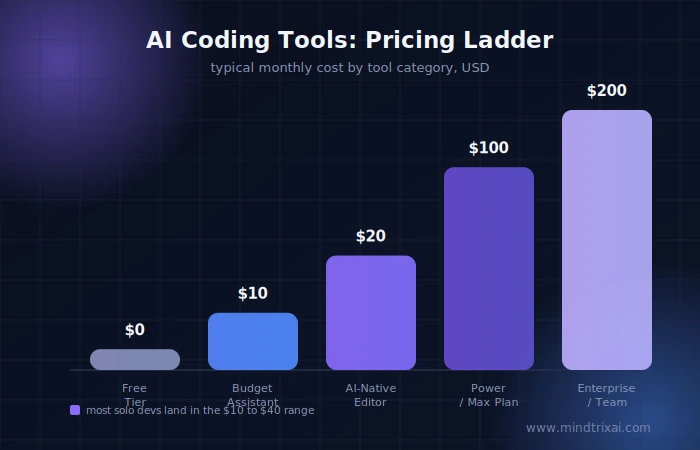
Here’s the honest, no-fluff answer: start free, and only upgrade once you feel a specific limit, not because a plan comparison chart told you to.
Genuinely useful free tiers in 2026:
- GitHub Copilot Free, 2,000 completions a month, is enough for light, occasional coding
- JetBrains AI Assistant’s free credits work well if you’re not coding every single day
- Windsurf’s free daily/weekly quota now includes unlimited Tab completions
- Amazon Q Developer’s free tier, 50 agentic requests a month, is solid for an individual AWS side project
Where paying immediately makes sense:
- If you code more than roughly 10 to 15 hours a week, free tiers on most tools become a bottleneck within days, not weeks
- If your work regularly spans multiple files or services, Cursor Pro or Claude Code Pro will save you more time than their $20/month price tags cost
- If you’re on a regulated team, Tabnine’s paid tiers aren’t optional, they’re the compliance floor, not a nice-to-have
Common User Pain Points and Objections [What Other Roundups Don’t Tell You]
A few honest, recurring frustrations came up repeatedly across developer discussions while I was researching this piece, and in my own testing. Most competitor listicles skip these, so here they are, straight.
“The pricing changed and I didn’t notice until my bill did.” Three major tools, GitHub Copilot, Cursor, and Windsurf, all restructured their billing in 2026, moving toward credit or token-based systems layered on top of a flat subscription fee. If you manually select a premium model like Claude Opus instead of using the tool’s default “Auto” routing, you can burn through a monthly allowance far faster than you’d expect. The fix is simple: stick to Auto or default models for routine work, and save manual premium-model selection for genuinely hard problems.
“It hallucinates confidently, and that’s scarier than an obvious error.” Every tool in this comparison, without exception, will occasionally generate code that looks correct but silently misses an edge case, a security consideration, or an internal convention nobody told it about. Treat every AI suggestion as a draft from a fast, occasionally overconfident junior developer, not a finished pull request.
“Agent mode did something I didn’t ask for.” This came up specifically around Cursor’s Composer and Copilot’s Agent Mode in community threads. Multi-file agentic edits are powerful, but they also mean more surface area for an unintended change to slip through. Reviewing diffs before accepting them isn’t optional caution here, it’s a required step, not a suggestion.
“I switched tools and lost all my context.” Several developers mentioned the annoyance of re-explaining a codebase every time they moved between tools. This is exactly the gap Claude Code’s CLAUDE.md and Windsurf’s Cascade memory are trying to close, and it’s worth weighing “does this tool remember my project” as its own evaluation criterion, not an afterthought you check last.
How Do You Know If an AI Coding Tool Is Actually Working for You?
This is the part most “best of” lists skip entirely, and it’s genuinely the most useful question you can ask after week one with any new tool.
Don’t just track how much code you’re generating. Track whether you’re spending less time on the boring parts and whether your rework has gone up or down. A tool that writes fast but forces three rounds of review to catch what it missed isn’t actually saving you time, it’s just moving the cost somewhere less visible.
A simple way to check, without needing a full engineering metrics dashboard: for two weeks, note roughly how long a typical bug fix or small feature took before you started using the tool, then compare that to how long the same kind of task takes now, including the time you spend reviewing and correcting what the AI gave you. If that number hasn’t actually gone down, the tool isn’t the wrong choice necessarily, but your workflow around it probably needs adjusting before you conclude it’s not working.
Pros and Cons Summary: AI Coding Tools in General
Pros of adopting AI coding tools:
- Meaningfully faster boilerplate, test generation, and documentation work
- A lower barrier to entry for learning new languages or frameworks
- Genuine architectural help when tracing bugs across unfamiliar code
Cons to plan around:
- Output still needs review; none of these tools replace a second pair of human eyes
- Pricing models are getting more complex, not simpler, across the market
- Over-reliance risk for junior developers who skip understanding why a suggestion actually works
Who Should Use AI Coding Tools, and Who Should Be Careful
A good fit if you:
- Write code regularly, even a few hours a week, and want fewer repetitive tasks eating your time
- Work across multiple files, services, or an unfamiliar codebase often enough that context-aware help genuinely saves time
- Already have a review process, code review, tests, or at minimum careful reading, before anything ships
Proceed carefully if you:
- Work in a highly regulated environment without a vetted, compliant tool (Tabnine, Qodo, or an approved enterprise deployment) already in place
- Are just starting to learn to code and risk skipping the understanding stage by accepting every suggestion without questioning it
- Manage a codebase where a subtly wrong suggestion could cause real financial or safety harm without rigorous testing already in place
More Guides & Tools:
- How Much Does It Cost to Make an App?: What Startups Actually Spend to Build an App
- Is OpenClaw Worth it? Real Costs, Hidden Risks & What No One Tells You
- Using Claude Code for Free: Step-by-Step Setup Most People Miss
- CheaterBuster AI Review: Catching a cheater became easy with this guide
- Remove CapCut Watermark: Fast & Easy Methods That Work
- Best AI Without Filter Chatbots: Unfiltered AI chatbots compared on privacy, safety and features!
- AI Smart Glasses vs Privacy: How smart glasses affect user privacy
- Claude Fable 5 Review: Is Claude Fable 5 worth the hype?
Frequently Asked Questions: Best AI Coding Tools
What is the best free AI coding tool in 2026?
What is the best AI coding tool for beginners?
Is Cursor or GitHub Copilot better?
Is Claude Code worth it for solo developers?
Do AI coding tools replace developers?
How much do AI coding tools typically cost per month?
Are AI coding tools safe for private or proprietary code?
Which AI coding tool has the best context window?
Can I use more than one AI coding tool at the same time?
Final Verdict: Which Best AI Coding Tool Should You Actually Pick?
If you want to know about the best AI tools for coding in one sentence: start with GitHub Copilot’s free tier to build a baseline, upgrade to Cursor or Windsurf at $20 a month once multi-file work becomes routine, and bring in Claude Code or Codex when you’re tackling something genuinely large or unfamiliar.
There’s no single winner for the best AI coding tools, and any list that hands you one without asking about your budget, your stack, or your comfort with agentic autonomy is skipping the part that actually matters. Match the tool to the job in front of you, not the other way around.